

 By
By Introduction
Screen lines on your iPhone can be frustrating, affecting both functionality and user experience. These lines can appear as vertical or horizontal streaks, varying in color and intensity. Addressing these screen anomalies promptly can restore your device’s usability and preserve its visual integrity. This guide explores reliable fixes and preventive strategies for screen lines on iPhones.

Understanding Screen Lines on iPhone
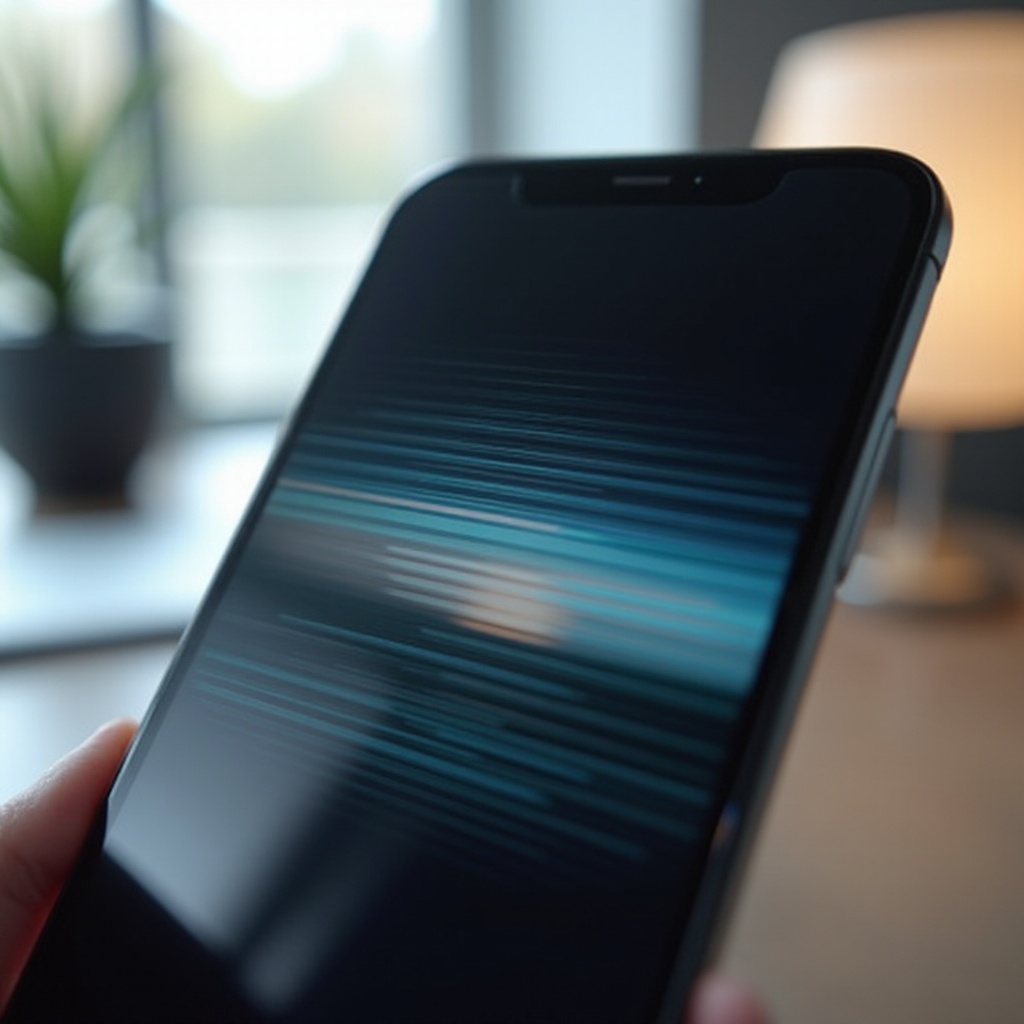
Screen lines manifest as thin, colored streaks that disrupt the display. They can make reading, navigating, and using your iPhone challenging. These lines may vary in orientation—either vertical or horizontal—and can differ in color, often a consequence of underlying issues like software glitches or hardware malfunctions.
Recognizing the type of screen lines is crucial for diagnosis and solution. If you notice faint lines or complete obstructions, identifying these symptoms helps target the root cause effectively. Understanding these types sets the stage for determining whether the issue needs a simple fix or a more comprehensive solution.
Causes of Screen Lines on iPhone
Determining the cause of screen lines is essential for choosing the appropriate remedy. Common causes include:
– Software-Related Causes: A recent iOS update or specific app might be responsible. Software glitches can occasionally introduce instability, resulting in aberrant screen lines.
– Hardware-Related Causes: Dislodged screen connectors or wear and tear over time can produce lines. Internal component issues must be addressed thoughtfully.
– Physical Damage and Environmental Factors: Dropping the device or exposure to extreme conditions can cause screen damage. Such factors require careful consideration when ruling out causes.
Identifying these causes guides users towards fixes and helps inform steps to prevent future occurrences. Understanding what’s behind screen lines connects users to effective troubleshooting.
Quick Fixes for Screen Lines on iPhone
Before opting for professional repair, try these quick solutions to resolve screen lines:
1. Restarting and Force Restarting Your iPhone: Sometimes, a basic reset can resolve temporary issues. For a force restart, hold down the correct button combination for your specific iPhone model until the Apple logo appears.
2. Updating the iOS to the Latest Version: Ensure your device is equipped with the newest software updates as they often include bug fixes. Navigate to Settings > General > Software Update to download and install updates.
3. Resetting iPhone Settings Without Data Loss: A settings reset can resolve configuration conflicts. Go to Settings > General > Reset, and select ‘Reset All Settings’ without affecting your data.
These immediate remedies can efficiently address minor screen issues. If screen lines continue, consider more involved steps.
Advanced Solutions for Persistent Screen Lines
If quick fixes fail, explore advanced remedies:
1. Using iTunes to Restore or Reset Your iPhone: Connect your iPhone to iTunes. Back up your data, then perform a complete restore to address underlying software issues.
2. Safe Mode Diagnostics for Troubleshooting: Booting in Safe Mode deactivates third-party apps that might be causing the problem. If lines disappear in Safe Mode, an app is likely the issue.
3. When to Contact Apple Support or a Repair Service: Persistent issues may necessitate professional help. Apple Stores or certified repair centers can diagnose and resolve hardware faults, ensuring safe and effective repairs.
These thorough techniques can uncover deeper causes when quick fixes are insufficient. Knowing when to escalate to professional help ensures all bases are covered.
Preventative Measures to Avoid Screen Lines
Avoid screen lines altogether by adopting these preventive strategies:
– The Importance of Using Screen Protectors and Cases: Quality screen protectors and cases offer necessary protection against physical impacts.
– Regular Software and System Maintenance: Consistent updates reduce the risk of encountering software-caused screen issues.
– Optimal Usage Practices for Screen Health: Avoid exposing your iPhone to extreme temperatures or causing physical stress by handling it carefully.
Incorporating these preventive measures prolongs the optimal functionality and longevity of your iPhone.

Conclusion
Experiencing screen lines on an iPhone can disrupt usability, but the solutions range from simple fixes to professional interventions. By implementing preventive measures and applying effective remedies, you maintain both visual quality and device performance. Address issues early to ensure your iPhone remains reliable and visually clear.
Frequently Asked Questions
What should I do if my iPhone screen lines don’t disappear after trying all fixes?
If you’ve attempted all solutions and the issue persists, contact Apple Support or visit a certified repair center for further assistance. It might be a hardware issue that needs professional attention.
Can screen protectors help prevent screen lines on my iPhone?
Yes, screen protectors can help prevent physical damage leading to screen lines. They provide an additional layer of protection against scratches and impacts.
How often should I update my iPhone to prevent screen issues?
Ensure regular updates by frequently checking for the latest iOS releases. Timely updates help prevent potential glitches and enhance overall device functionality.