

 By
By Introduction
Upgrading the RAM on your Chromebook can significantly enhance its speed and ability to handle multiple tasks. Whether you use it for studying, work, or browsing, adding more memory can transform your Chromebook’s performance. This guide provides detailed instructions and tips for upgrading your Chromebook’s RAM in 2024.

Understanding RAM and Its Importance in Chromebooks
RAM, or Random Access Memory, is a critical component that stores active data temporarily, aiding quick access by the system. An increase in RAM can lead to improved performance, mainly when running multiple applications or tabs, which is particularly beneficial for heavier tasks. Although Chromebooks are optimized for web use, they do benefit from additional RAM, especially with apps that are more resource-intensive. Recognizing the impact of RAM prepares you for an effective upgrade decision.
Checking Compatibility for RAM Upgrade
Before purchasing new RAM, verify whether your Chromebook allows RAM upgrades. Here’s how to go about it:
- Identify Your Chromebook Model: Check the model name and number on your device.
- Consult Manufacturer Specifications: Go to the official website to learn about your model’s upgrade capabilities.
- Leverage Online Resources: Use forums and tech websites to find detailed compatibility information for your model.
- Employ Compatibility Tools: Resources like ‘Crucial System Scanner’ can offer insights into suitable RAM options for your Chromebook.
Ensuring compatibility before upgrading minimizes the risk of purchasing incompatible memory modules.
Step-by-Step Guide to Upgrading RAM
Once you’ve confirmed that your Chromebook can be upgraded, follow these steps to replace your RAM:
- Gather Necessary Tools: You’ll need a small Phillips screwdriver and an anti-static wrist strap.
- Backup Your Data: Protect against data loss by backing up important files.
- Power Off and Prepare: Shut down the Chromebook and detach any peripherals.
To open and complete the upgrade:
- Open the Chromebook:
- Place it on a stable, soft surface.
- Use a Phillips screwdriver to remove the screws on the back cover.
-
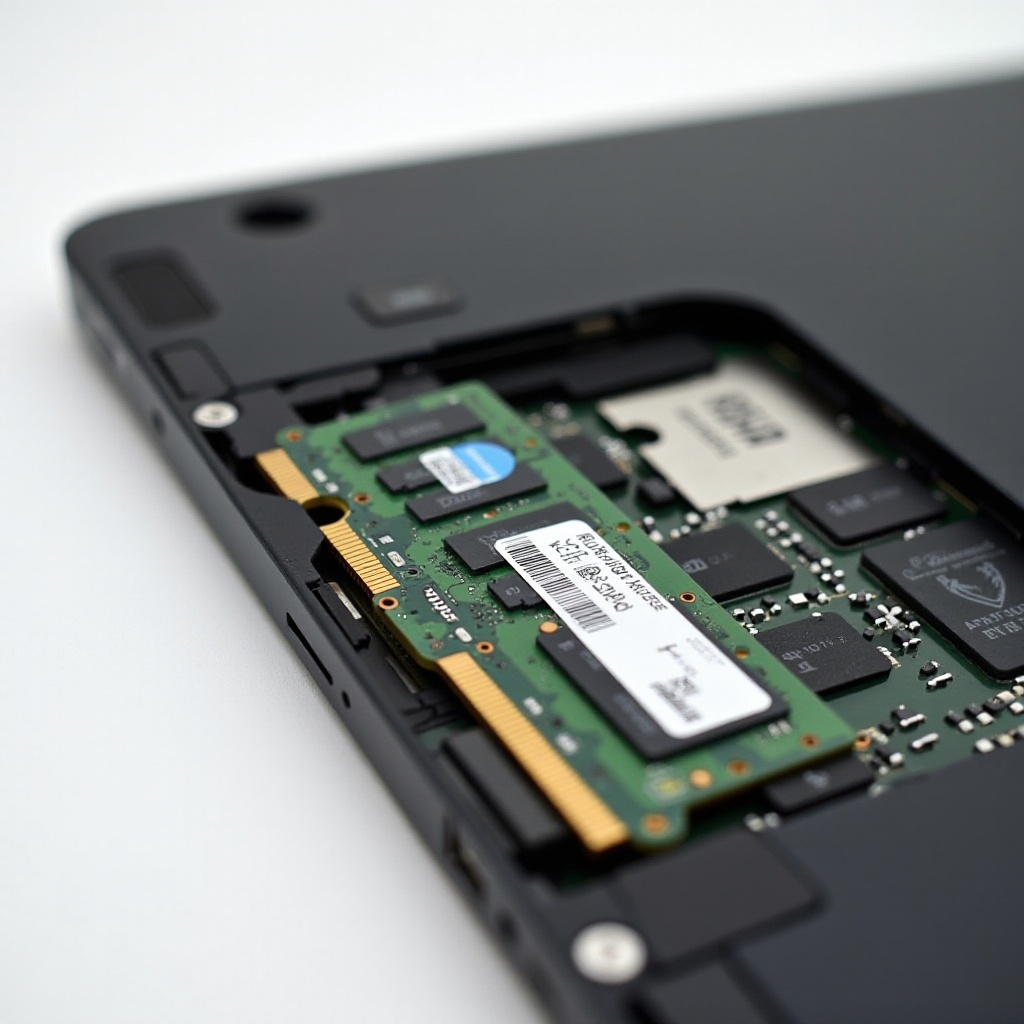
Gently lift the cover to access internal components, including the RAM slot.
-
Swap the RAM Module:
- Locate the RAM slot on the motherboard.
- Release the current RAM using side clips and insert the new module.
- Ensure proper installation with a secure click.
- Reattach the back cover and screws.
- Power on the device to verify recognition of the new RAM.
Following these steps should help you successfully upgrade the RAM and enhance your Chromebook’s performance.
Benefits of a RAM Upgrade on Chromebook Performance
A RAM upgrade can deliver noticeable performance improvements in several areas:
- Multitasking Efficiency: Operate more apps and tabs without lag.
- Quick Application Response: Experience faster loading times and smoother navigation.
- Extended Device Lifespan: Make your Chromebook more future-proof by accommodating upcoming software demands.
Upgrading RAM is a cost-effective way to significantly boost your Chromebook’s performance.
Troubleshooting Common RAM Upgrade Issues
After installation, some users may encounter issues like:
- Non-Recognition of New RAM:
- Re-seat the RAM and ensure it’s properly installed.
-
Check for compatibility and conduct a soft reset.
-
Reduced Performance:
- Look for system updates that optimize for new hardware.
- Check for unnecessary apps consuming memory.
These troubleshooting steps can help resolve common issues, ensuring optimal performance.

Alternatives to RAM Upgrades
Not all Chromebook models support RAM upgrades. If that’s the case, consider these alternatives:
- Utilize Cloud Services: Depend more on Google Drive or cloud storage to free up local space.
- Optimize Software Settings: Modify browser settings to reduce memory footprints, such as using fewer tabs or installing efficiency-focused extensions.
These alternatives can enhance performance when direct upgrades aren’t feasible, and they complement a RAM upgrade to maintain overall system efficiency.
Conclusion
Upgrading your Chromebook’s RAM in 2024 can significantly enhance its speed and multitasking capabilities, making it a worthwhile upgrade. By understanding and following a careful upgrade process, you can improve not only your Chromebook’s performance but also your productivity and digital experience.
Frequently Asked Questions
Can all Chromebooks have their RAM upgraded?
No, not all Chromebooks support RAM upgrades. It’s important to check your specific model’s specifications before attempting an upgrade.
Does upgrading RAM void the warranty on my Chromebook?
RAM upgrades may void the warranty depending on the manufacturer’s policies. Always check warranty terms before proceeding.
How much RAM should I consider adding for optimal performance?
For improved multitasking and performance, aim for at least 8GB of RAM, especially if you frequently use resource-intensive apps or multiple browser tabs.