

 By
By Introduction
The Apple Watch stands out for its intuitive design, making navigation a breeze. However, experiencing issues with the swipe function can disrupt this seamless interaction. This common problem not only affects access to notifications but also diminishes the overall user experience. Addressing this issue is crucial for maintaining the full functionality of your Apple Watch. This guide will walk you through potential causes and effective solutions to resolve the swipe problem.
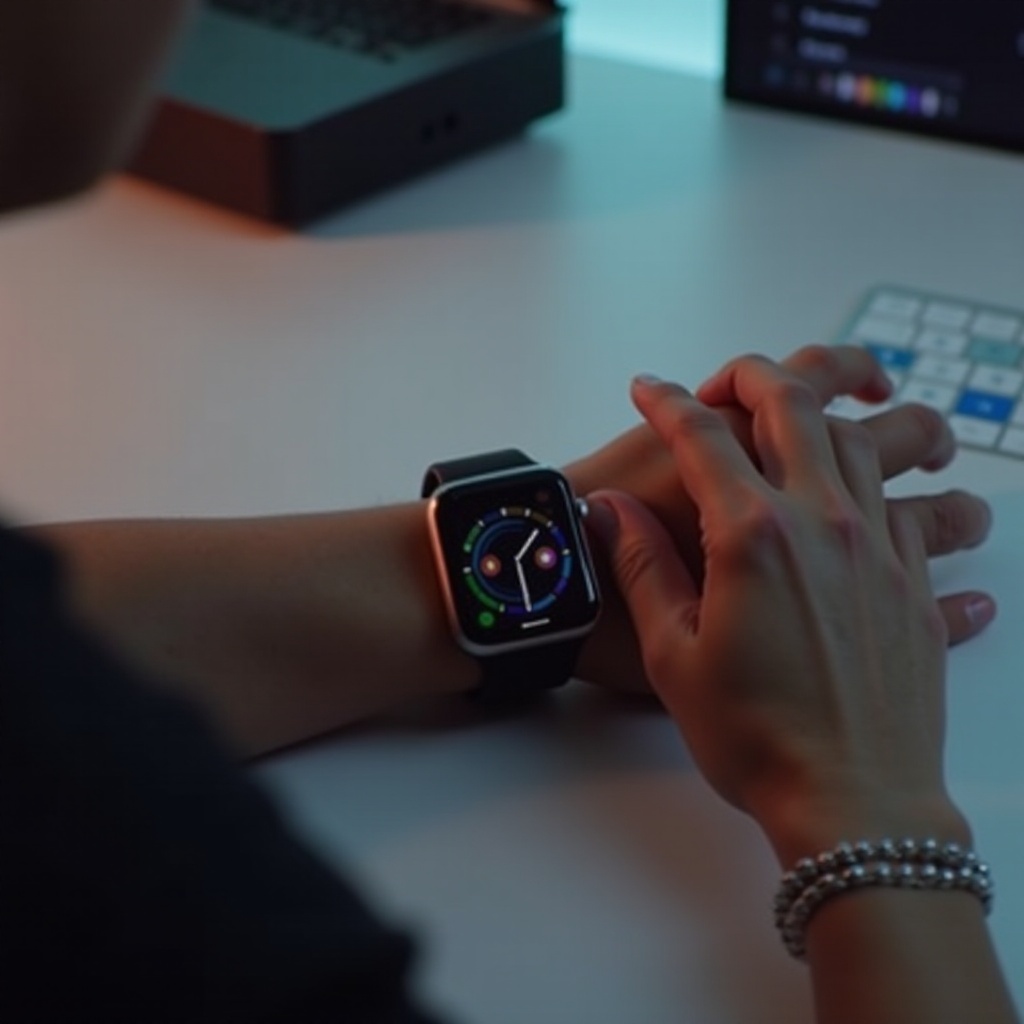
Understanding the Swipe Gesture Problem
Swiping down provides quick access to essential functions like notifications. When this doesn’t work, identifying the cause is the first step:
-
Common Causes of Swipe Down Issues: Software bugs, outdated apps, or interference from screen protectors might hinder the swipe gesture. Misconfigured settings or a dirty screen can also be culprits.
-
Impact on User Experience: A non-responsive swipe can lead to missed updates and a frustrating experience. Understanding the impact underscores the importance of resolving the issue quickly.
Having grasped the issue’s importance and causes, you’re ready to take action with immediate troubleshooting steps.
Immediate Troubleshooting Steps
Often, simple solutions can solve the swipe issue. Follow these steps to restore your Apple Watch’s functionality:
-
Restarting Your Apple Watch: Press and hold the side button until you see ‘Power Off.’ Drag the slider, and turn the watch back on by pressing the side button again.
-
Checking Screen Sensitivity Settings: Go to ‘Settings’ on your watch, select ‘Accessibility,’ and ensure that ‘Touch Accommodations’ is correctly set.
-
Cleaning the Screen and Removing Obstructions: Dust or debris can affect touch sensitivity. Clean the screen with a microfiber cloth and remove any protector that’s causing interference.
These steps often resolve minor issues. If problems persist, more advanced solutions may be necessary.
Advanced Solutions for Swipe Down Issues
If basic solutions don’t work, further troubleshooting is needed. Dive deeper into your device settings:
-
Updating watchOS to the Latest Version: Check for updates under ‘Settings’ > ‘General’ > ‘Software Update’ on your iPhone paired with the watch to ensure you’re running the latest software.
-
Unpairing and Re-pairing with iPhone: To reset connectivity, open the Watch app on your iPhone, tap ‘My Watch,’ select your watch, and choose ‘Unpair Apple Watch.’ Follow the setup instructions to re-pair.
-
Performing a Factory Reset (as a last resort): Navigate to ‘Settings,’ then ‘General’ > ‘Reset,’ and select ‘Erase All Content and Settings.’ Ensure there’s a backup as this removes all data.
Once you’ve addressed the issue, consider preventive measures to avoid recurrence.
Preventive Measures to Avoid Future Swipe Issues
Keeping your Apple Watch in peak condition involves regular maintenance:
-
Regular Software Updates: Install updates promptly to keep your watch bug-free and running smoothly.
-
Optimal Device Handling and Maintenance: Use compatible screen protectors to prevent interference with the touch function and clean your watch regularly to prevent dust build-up.
Adopting these measures ensures long-term functionality and reliability of your device.
When to Seek Professional Help
Sometimes, professional help is necessary:
-
Identifying Hardware Issues: Persistent problems might indicate hardware damage. Consulting a technician can provide a definitive solution.
-
Contacting Apple Support: For repair or replacement, Apple Support or certified technicians offer reliable services.
Seeking help when needed ensures your device receives proper care.
Conclusion
Addressing swipe issues on your Apple Watch promptly preserves its functionality and enhances the user experience. By identifying causes and applying immediate and advanced solutions, you maintain your device’s performance. With preventive measures, you’ll enjoy uninterrupted service for a long time.
Frequently Asked Questions
Why won’t my Apple Watch swipe down after an update?
Software glitches post-update can affect functionality. Restart your device and check for any additional updates to resolve these bugs.
How do I calibrate my Apple Watch screen?
Apple Watches lack a manual screen calibration feature. Ensure ‘Touch Accommodations’ is correctly configured through accessibility options.
Can a screen protector affect my Apple Watch’s swipe function?
Yes, inappropriate screen protectors can interfere with touch sensitivity. Use a high-quality protector and clean your watch regularly.