

 By
By Having a damaged laptop screen can seriously hamper your productivity. Problems like cracks, dead pixels, or unresponsiveness can make everyday tasks frustrating. Instead of resorting to costly repairs, this guide will show you how to change the screen on a Dell laptop yourself. Equipped with the right tools and understanding, you can efficiently perform this task, save money, and extend the lifespan of your device.
Introduction
Dealing with a broken laptop screen presents a challenge that many users face. By learning to replace your laptop screen, you gain not only a repaired device but also the satisfaction of acquiring a valuable skill. This guide is structured to provide you with clear, concise instructions, highlighting the necessary tools, safety practices, and troubleshooting techniques needed for a successful screen replacement.
Tools and Materials Required
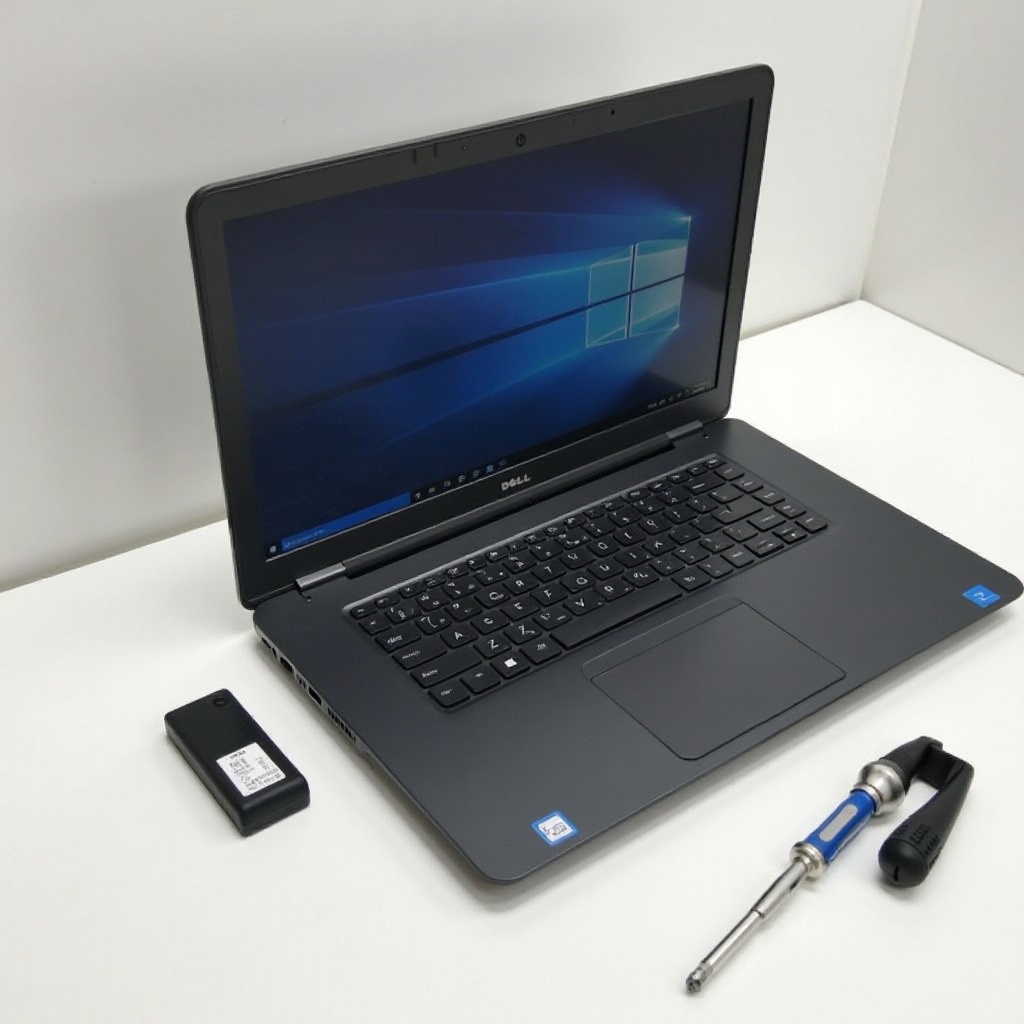
Your first step to a successful screen replacement is gathering the right tools and materials. Preparing adequately will help prevent interruptions during the repair process. Ensure you have the following at hand:
- A set of small screwdrivers, typically a Phillips-head screwdriver
- An anti-static wristband
- A clean, static-free workspace
- The correct replacement screen for your laptop model
Being well-prepared with the right tools ensures the process flows smoothly.
Safety Precautions Before You Begin
Before diving into the replacement process, prioritize safety to protect yourself and avoid damaging your device. Start by:
- Powering down the laptop and unplugging it from any power sources.
- Removing the battery to eliminate electric shock risk.
- Wearing an anti-static wristband to prevent static electricity from damaging your laptop’s circuits.
- Set up a clean, stable, and well-lit workspace where you can efficiently organize small parts.
By adhering to these safety measures, you create an environment conducive to a safe and effective repair.
Identifying the Correct Replacement Screen
Finding a compatible screen is crucial for your repair task. Start by identifying your Dell laptop’s model number, typically located on the bottom or under the battery. Search for the appropriate screen using this model number through authorized Dell retailers or trusted online platforms.
To ensure compatibility, double-check product specifications, and read customer reviews. Securing the correct replacement screen simplifies the installation process and helps avoid further compatibility issues.
Step-by-Step Screen Replacement Process
Once you have everything you need, proceed to replace your screen following these detailed steps:
- Removing the Bezel:
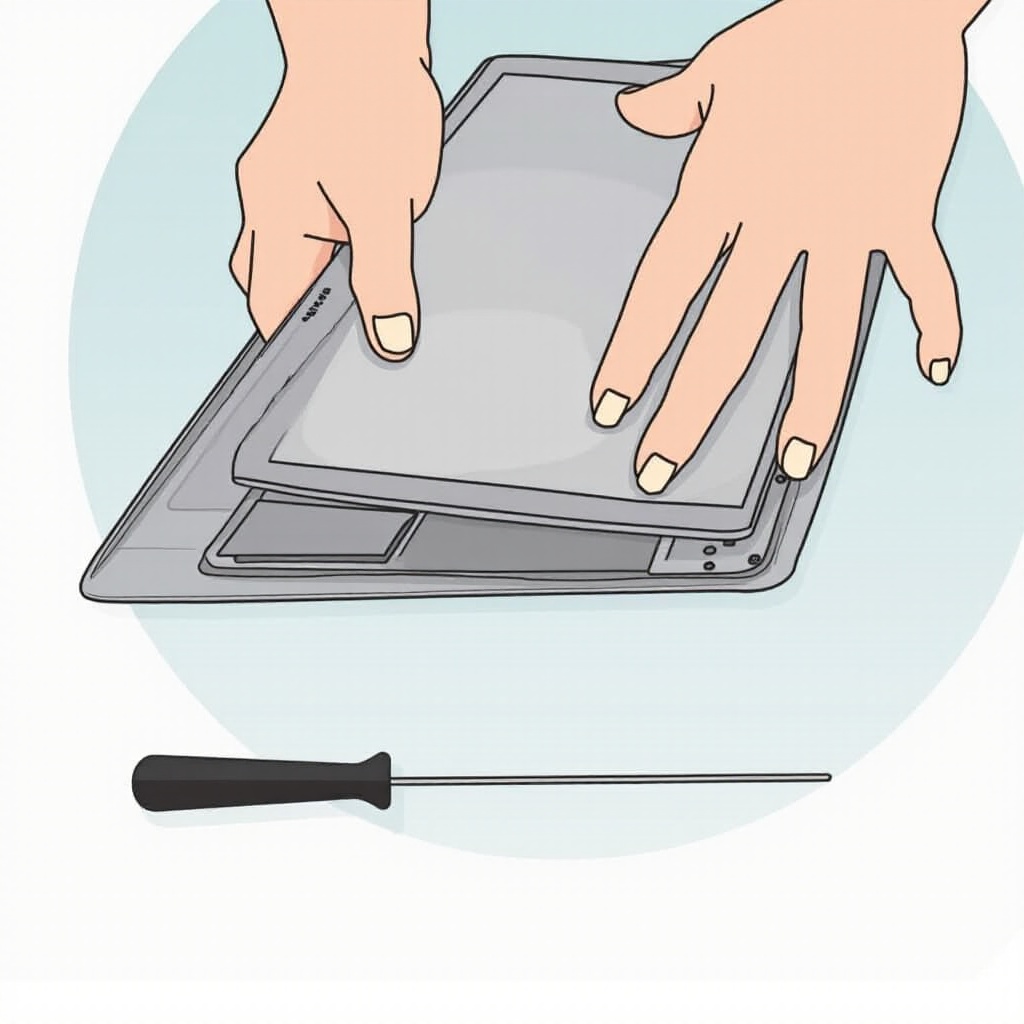
- Use a prying tool to gently detach the bezel, which is the frame surrounding your screen.
-
Unscrew and set aside the screws that secure the bezel.
-
Unscrewing and Disconnecting the Old Screen:
- Remove the screws holding the old screen.
-
Carefully incline the screen forward to access and disconnect the display cable, avoiding any sudden tugs.
-
Installing the New Screen:
- Connect the new screen to the display cable, ensuring a secure connection.
-
Fasten the screen into position with the screws, confirming it’s stable and aligned correctly.
-
Reattaching the Bezel:
- Snap the bezel back into place securely, ensuring all clips are properly engaged.
- Recheck the assembly for any loose parts.
By attentively following these instructions, you not only achieve a successful screen replacement but also reduce the risk of further damage to the laptop.
Testing the New Screen
After installation, it’s time to see if your efforts paid off. Reinsert the battery, power up the laptop, and observe:
- Confirm the screen lights up with no distortions or flickering.
- Ensure the display responds properly to inputs if applicable.
A proper test guarantees the fix is complete and that your laptop is back in good working order.
Troubleshooting Common Issues
At times, unforeseen challenges can arise even after careful preparation. Here are common problems and solutions:
- Screen Doesn’t Turn On:
-
Recheck all connections, particularly the display cable.
-
Display Glitches or Distortions:
- Verify the screen’s resolution capability and update drivers as needed.
A structured troubleshooting approach helps maintain your device’s integrity and ensures long-term functionality.
Conclusion
Taking the initiative to replace your Dell laptop screen not only fixes your device but also empowers you with a skill that can save costs in the future. By following this guide diligently, you equip yourself to perform hardware repairs confidently. If you encounter obstacles beyond your expertise, seeking professional aid is always a sound backup plan.
Frequently Asked Questions
Can I replace the screen on any Dell laptop model?
Yes, most Dell laptop screens are replaceable. Check your model’s specifics to ensure compatibility.
How much does it typically cost to replace a Dell laptop screen?
Screen replacement costs range from $50 to $200 depending on the screen type and supplier.
How long does it take to change a laptop screen?
A novice can complete the process in about an hour, while experienced technicians may take as little as 30 minutes.